Status
The console’s home page, at /.
What it’s for
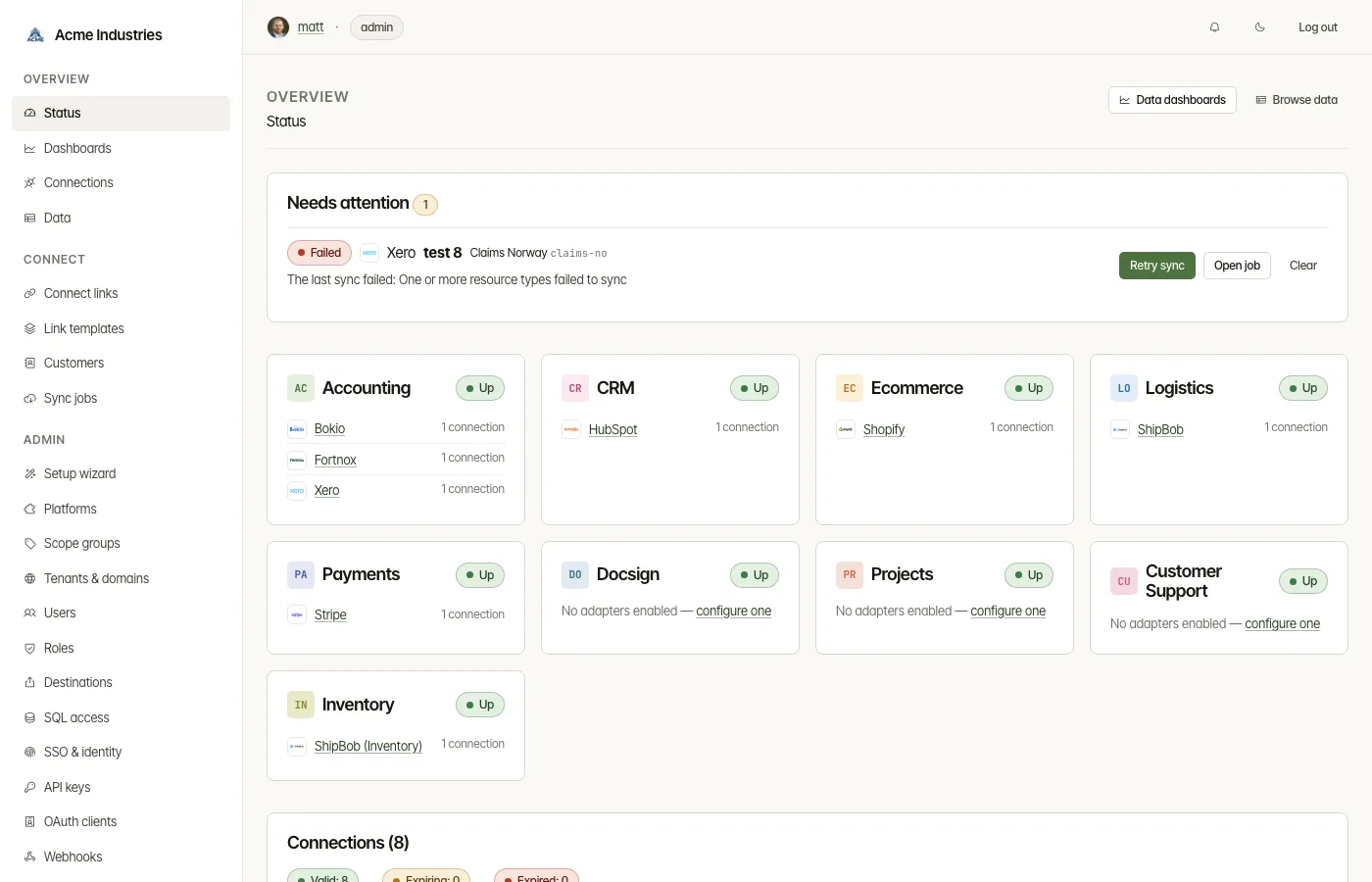
Section titled “What it’s for”Status answers two questions at a glance: is anything broken, and what should someone do about it? It shows:
- whether each vertical’s backend answers;
- which platforms are set up;
- how healthy the connections are;
- a short to-do list of problems, each with the action that fixes it.
Who can use it
Section titled “Who can use it”Every signed-in user sees the page. What you can do from it depends on your role:
- Viewers can read everything, but can’t clear rows.
- Operators can clear and undo rows about connections and syncs, unless they are restricted to some tenants.
- Admins can also act on rows about platform credentials and verticals that are down, and they see the setup card.
What you can do
Section titled “What you can do”-
Finish setting up (admins only). Until the setup wizard is complete, a card names the next step, for example “next: Credentials (step 5 of 8)”.
- Continue setup opens that step.
- Skip for now hides the card until the next step changes.
- Undo shows it again.
-
Needs attention. Each problem gets one row, with the buttons that deal with it:
Problem Actions A vertical is down Open System page (admin) A platform’s OAuth client credentials were rejected Fix credentials, which opens the platform page (admin) A connection’s authorization expired Mint Connect Link to send the customer a new link, or Delete A connection’s token refresh is failing Open connection, Mint Connect Link The last sync failed Retry sync, Open job - Clear hides a row until the problem comes back. Clear all hides every row you’re allowed to clear.
- For 15 minutes, a Cleared recently strip offers Undo.
- When there are more than eight rows, the rest collapse into a link to the full list.
-
Vertical cards. There is one card per vertical, marked Up or Down. Each lists the enabled adapters with a badge:
- Credentials rejected;
- No credentials;
- the number of connections;
- Ready.
Admins also see a link to adapters that are configured but switched off.
-
Connections summary. Counts of valid, expiring and expired connections, plus rejected platform credentials when there are any.
-
Shortcuts.
- Data dashboards and Browse data, if your role allows them.
- View all connections.
- Browse platforms, for admins.
Related docs
Section titled “Related docs”- Connections and Sync jobs, where most rows lead.
- Platforms, where rejected OAuth client credentials are fixed.
- Tenants, company, settings and notifications: the System page.
- Architecture: admin page map.
opensteward.dev ·Plans and free license ·Terms ·Privacy ·support@opensteward.dev
© 2026 Falco Consulting AB. Built from open-steward/opensteward@a3961d8. This site sets no cookies, runs no analytics and loads nothing from other sites, except platform logos from Brandfetch on the Platforms page.