Data
The data viewer, at /data. It lets you browse the records OpenSteward has
synced, with personal data masked by default.
What it’s for
Section titled “What it’s for”The data viewer shows what the data store actually holds for each connection, without database access and without exposing personal data by accident. Use it to:
- check that a sync brought back what you expected;
- answer a support question;
- export a slice of records.
Who can use it
Section titled “Who can use it”data:read(operator, admin) opens the viewer. Records are always masked.data:export(operator, admin) downloads CSV or NDJSON.data:read_pii(admin) reveals one record’s personal data. It also allows Include personal data on an export.- A tenant-restricted user sees only their tenants’ connections. Another tenant’s connection answers “not found”.
What you can do
Section titled “What you can do”-
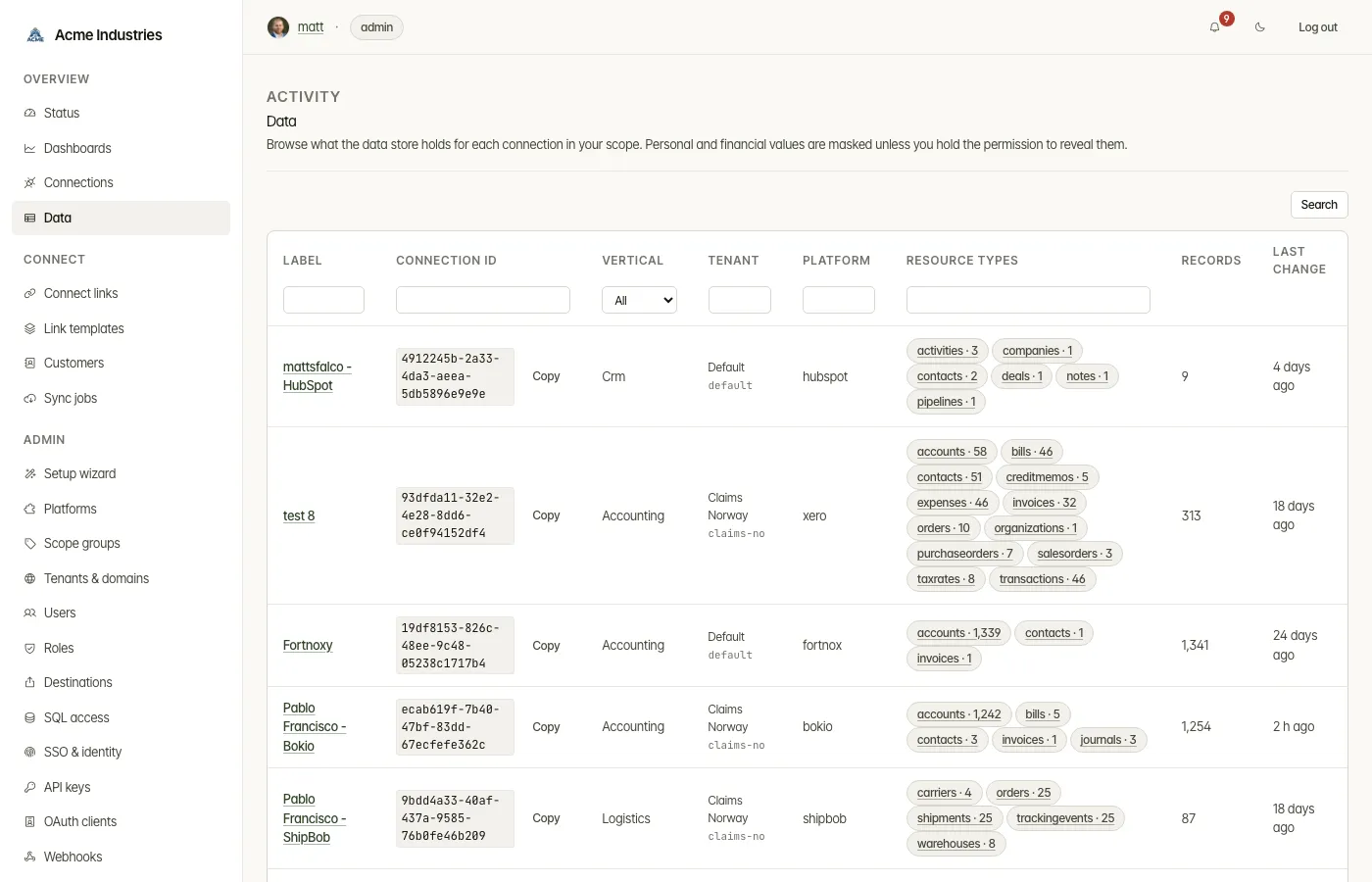
See what’s stored. The index lists every connection in your scope with:
- its label and full connection id, with a Copy button;
- its vertical, tenant and platform;
- one badge per resource type, with a record count;
- the total number of records;
- when the data last changed. Hover the time to see the exact date.
If the deployment runs in
passthroughmode, nothing is stored and the page says so. -
Find a connection. The index works like the other admin tables:
- The row under the headers filters by Label, Connection id,
Vertical, Tenant, Platform and Resource types. Text boxes
match part of what the column shows, ignoring case. An id prefix is
enough, and typing
invoicesunder Resource types keeps only connections that hold invoices. Press Enter or Search to apply, and Clear to reset. - Click any column header to sort by it. Click again to reverse the order. Records sorts by count, and Last change by the time behind “17 h ago”.
- Filters and sort order live in the URL, so a filtered view can be bookmarked or shared.
- The row under the headers filters by Label, Connection id,
Vertical, Tenant, Platform and Resource types. Text boxes
match part of what the column shows, ignoring case. An id prefix is
enough, and typing
-
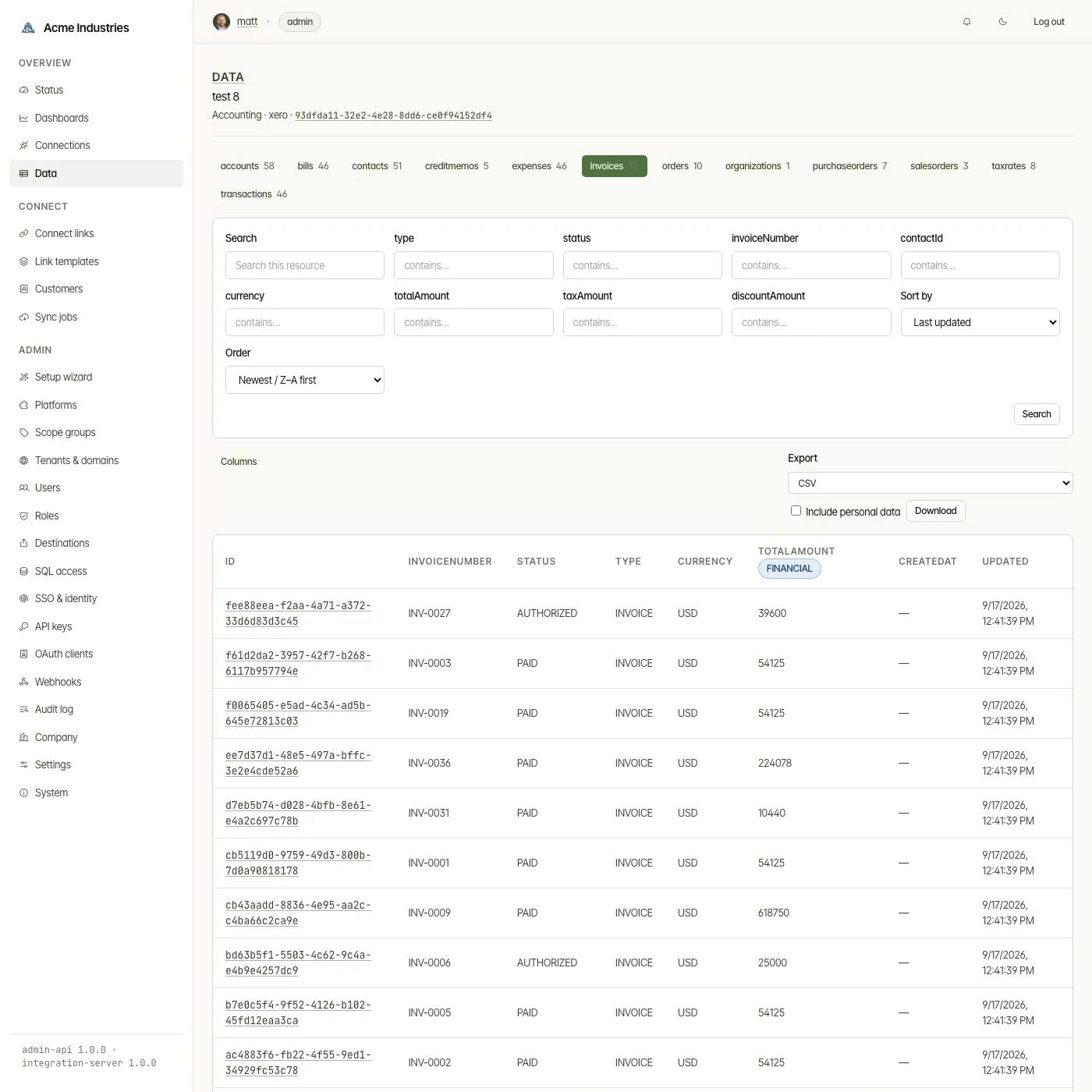
Browse a connection.
- Each resource type has its own tab. The table is cursor-paginated.
- Search the resource, filter on the fields that allow it, sort by last updated or record id, and pick columns with Columns.
- Column headers carry PII, Financial and Secret badges.
-
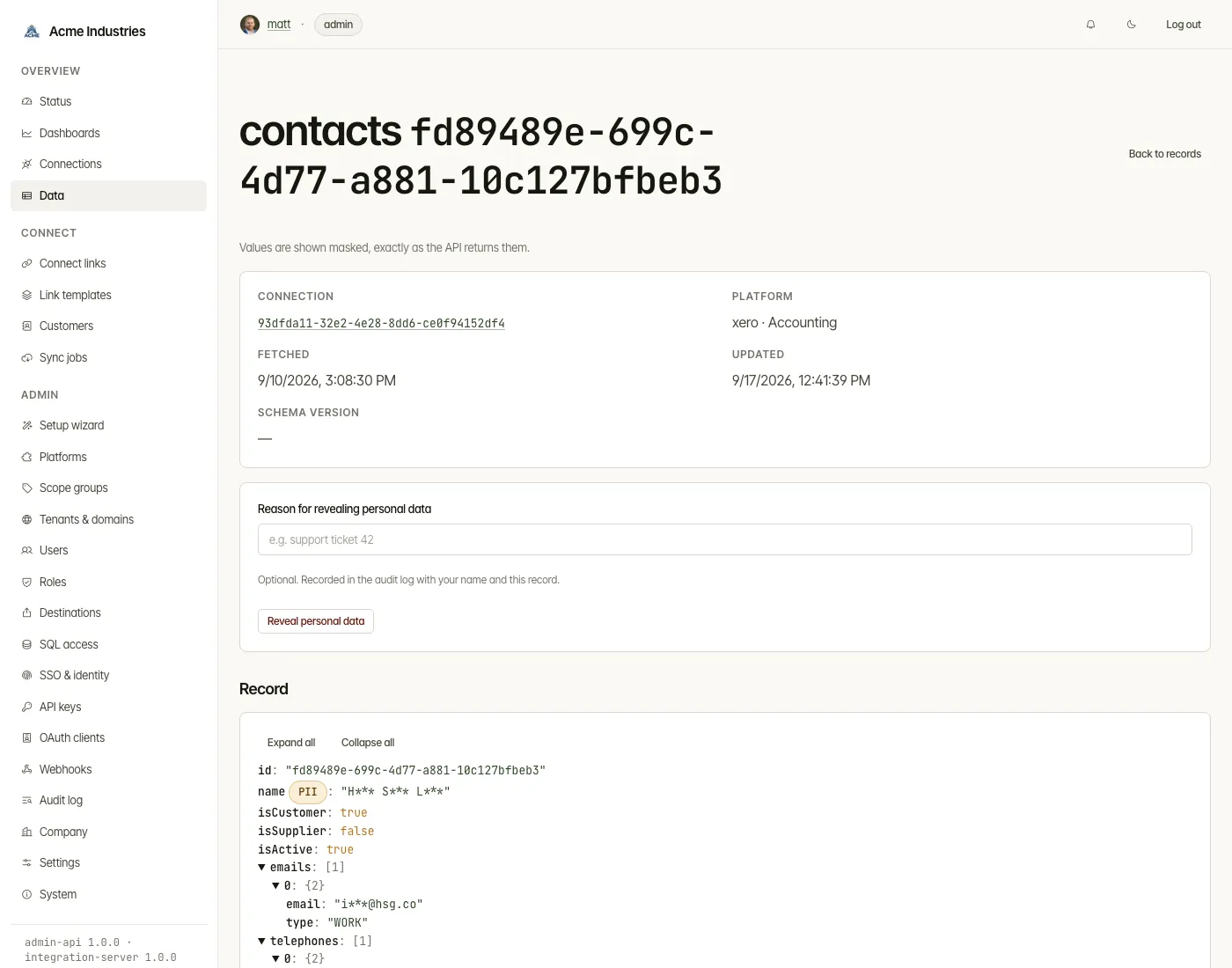
Open a record. Click its id to open it in a dialog. You see:
- its connection, platform, fetch and update times and schema version;
- the record as a JSON tree with classification badges;
- a field-classification table showing how each field is masked.
-
Reveal personal data (
data:read_pii).- Give an optional reason and press Reveal personal data.
- The unmasked record is shown once and the reveal is written to the audit log, with your name and the reason.
- Reload the page to go back to the masked view.
-
Export (
data:export). Download the current resource as CSV or NDJSON.- The export is masked the same way as the table.
- Holders of
data:read_piican tick Include personal data. - Every export is audited.
How masking works
Section titled “How masking works”- Personal-data fields are masked, and secrets are removed.
- Financial fields are masked too when an admin turns on
data_access.mask_financialin Settings. - A resource type with no field classification yet is masked by default, and the page warns you about it.
Related docs
Section titled “Related docs”- Architecture: data access: the viewer, the scope header, masking and audit.
- Security: data classification and masking: field classes and masks.
- Destinations and SQL access: other ways to take data out.
opensteward.dev ·Plans and free license ·Terms ·Privacy ·support@opensteward.dev
© 2026 Falco Consulting AB. Built from open-steward/opensteward@a3961d8. This site sets no cookies, runs no analytics and loads nothing from other sites, except platform logos from Brandfetch on the Platforms page.