Admin console
The admin console is OpenSteward’s web UI for the people who run it. It is the
admin service on port 3000 (http://localhost:3000 in the Docker quick
start). Every action goes through admin-api, which checks your role and
permissions again on each call, so the console only shows what you are allowed
to do.
Use it to:
- set up platforms;
- send Connect Links to customers;
- watch connections and syncs;
- browse synced records;
- build dashboards;
- manage who can do what.
This guide goes through the console page by page. For a route-by-route map with access levels, see architecture/admin-page-map.md.
Signing in
Section titled “Signing in”- First run. On a fresh deployment every page redirects to
/setup/init. Create the first admin account there with a username and password. If the deployment setsBOOTSTRAP_TOKEN, the form also asks for that token, so nobody else can claim a published deployment before you do. Then sign in, and the setup wizard walks you through the rest. - Password.
/logintakes a username and password. - SSO and LDAP. Once an admin adds an identity provider, the login page shows Sign in with <provider> for each OIDC or SAML provider, and an expandable username and password form for each LDAP directory. If an admin turns password login off in Settings, the password form moves under Use a local account for the break-glass admin. See SSO & identity.
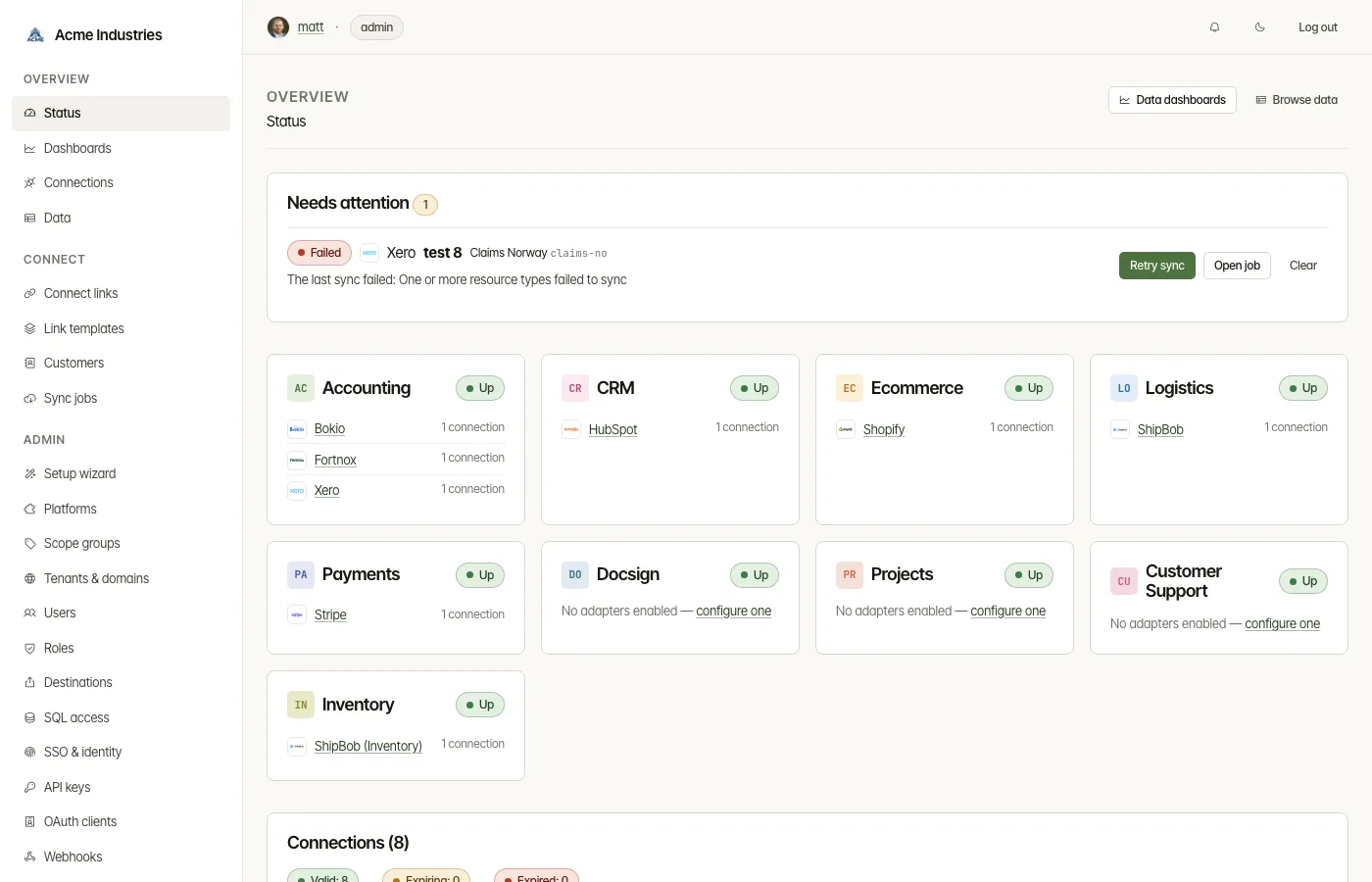
The sidebar
Section titled “The sidebar”The sidebar has three groups. Entries you can’t use are hidden.
| Group | Entries |
|---|---|
| Overview | Status · Dashboards · Connections · Data |
| Connect | Connect links · Link templates · Customers · Sync jobs |
| Admin | Setup wizard · Platforms · Scope groups · Tenants & domains · Users · Roles · Destinations · SQL access · SSO & identity · API keys · OAuth clients · Webhooks · Audit log · Company · Settings · System |
The header across the top holds:
- your picture and username, which link to My profile;
- your role, plus a scoped badge if you only see some tenants;
- the notifications bell, with an unread count, which opens Notifications;
- the light/dark theme toggle;
- Log out.
The sidebar footer shows the build each service is running. The brand link at the top shows your company logo once one is set under Company.
Who sees what
Section titled “Who sees what”Every console user has a role. There are three built-in roles:
- viewer looks.
- operator runs the day-to-day work.
- admin configures the deployment.
An admin can also define custom roles. Each custom role has a base role and its own set of permissions (see Users, roles and tenant scope). Some pages check the base role and others check a single permission.
| Page | viewer | operator | admin | Decided by |
|---|---|---|---|---|
| Status | View | Also clears connection and sync rows under Needs attention (not when restricted to some tenants) | Also sees the setup card and acts on platform and vertical rows | Any signed-in user |
| Dashboards | View | Also creates and edits dashboards | Also shares with everyone and decides who sees Superset dashboards | dashboards:view, dashboards:edit, dashboards:share_all |
| Connections | View | Also renames, syncs, sets the sync schedule and deletes | Same as operator | Any signed-in user. Changes need the operator role |
| Data | — | Browses masked records and exports them | Also reveals personal data | data:read, data:export, data:read_pii |
| Connect links, templates, Customers | View | Also creates, edits and revokes, and mints customer MCP tokens | Also reveals a customer’s personal data and deletes customers | Any signed-in user. Changes need the operator role |
| Sync jobs | View | Also cancels jobs | Same as operator | Any signed-in user. Cancel needs the operator role |
| Notifications | Read | Also dismisses | Also dismisses | Any signed-in user |
| My profile | Own picture | Own picture | Own picture | Any signed-in user |
| Roles | — | — | Yes | roles:manage |
| Destinations | — | — | Yes | destinations:manage |
| SQL access | — | — | Yes | sql_access:manage |
| Setup wizard, Platforms, Scope groups, Tenants & domains, Users, SSO & identity, API keys, OAuth clients, Webhooks, Audit log, Company, Settings, System | — | Some by URL (below) | Yes | The admin base role |
Some things the table doesn’t show:
- The Admin group appears for admins, and for anyone holding
roles:manage,destinations:manageorsql_access:manage. They see only those entries. - Operators can open some admin pages by typing the URL.
/api-keys,/webhooksand/oauth-clientsare read-only for them. On/tenantsthey can also create and delete tenants, and on/scope-groupscreate and edit scope groups. Viewers can open/tenants,/scope-groupsand/setup/wizardread-only. - Tenant scope narrows what a user sees. A user restricted to some tenants
sees only those tenants’ connections, sync jobs, records and dashboard
numbers.
- Pages that aren’t tenant-scoped yet refuse them: customers, Connect Links, link templates, API keys, webhooks, OAuth clients and the audit log.
- So do deployment-wide changes, such as platform configuration and scope groups.
- An admin always sees every tenant.
- Hidden doesn’t mean unprotected. The console hides what you can’t use, but admin-api makes the real decision on every request.
The full permission catalog and the escalation guards are in architecture/permissions-and-roles.md.
Pages in this guide
Section titled “Pages in this guide”In reading order:
- Setup wizard: the eight first-run steps.
- Status: health and the Needs attention list.
- Dashboards: built-in and custom charts over synced data, plus embedded Superset.
- Connections: every authorized platform account, and its sync schedule.
- Data: browse, reveal and export synced records.
- Connect links and templates: send customers a link to connect a platform.
- Customers: the end-customers behind your connections, and their MCP tokens.
- Sync jobs: what synced, when, why and how far it got.
- Platforms and scope groups: the adapter catalog, OAuth credentials and scope bundles.
- Users, roles and tenant scope: console accounts and what they may do and see.
- SSO & identity: OIDC, SAML and LDAP sign-in, role and scope mapping, and SCIM.
- Destinations: scheduled exports to your lake or warehouse.
- SQL access and Superset: read-only Postgres logins for BI tools, and embedded Superset.
- API keys, OAuth clients and webhooks: the developer API’s credentials and outbound events.
- Tenants, company, settings and notifications: deployment-wide configuration.
- Audit log and My profile.
Related docs
Section titled “Related docs”- Architecture: admin page map: every route, grouped by access level.
- Architecture: permissions, roles and tenant scope.
- Architecture: auth and tenancy: the five-layer auth model and first-run bootstrap.
- Developer Guide: the API your applications call.
opensteward.dev ·Plans and free license ·Terms ·Privacy ·support@opensteward.dev
© 2026 Falco Consulting AB. Built from open-steward/opensteward@a3961d8. This site sets no cookies, runs no analytics and loads nothing from other sites, except platform logos from Brandfetch on the Platforms page.