Platforms and scope groups
The adapter catalog, each platform’s OAuth credentials, and reusable scope
bundles. The pages are /platforms and /scope-groups.
What it’s for
Section titled “What it’s for”Before a customer can connect a platform, an admin has to enable it here. OAuth platforms also need your OAuth app’s client ID and secret. Scope groups are named sets of OAuth scopes for one platform, for example a read-only set. You pick them on a platform’s page and on the new Connect Link form.
Who can use it
Section titled “Who can use it”- Platforms is for admins only.
- Scope groups shows in the sidebar for admins only. Operators can still
open
/scope-groupsand create, edit and delete groups there. Viewers get a read-only view. - Tenant-restricted users can’t change platform configuration or scope groups, because both apply to every tenant.
What you can do
Section titled “What you can do”On the Platforms page (/platforms):
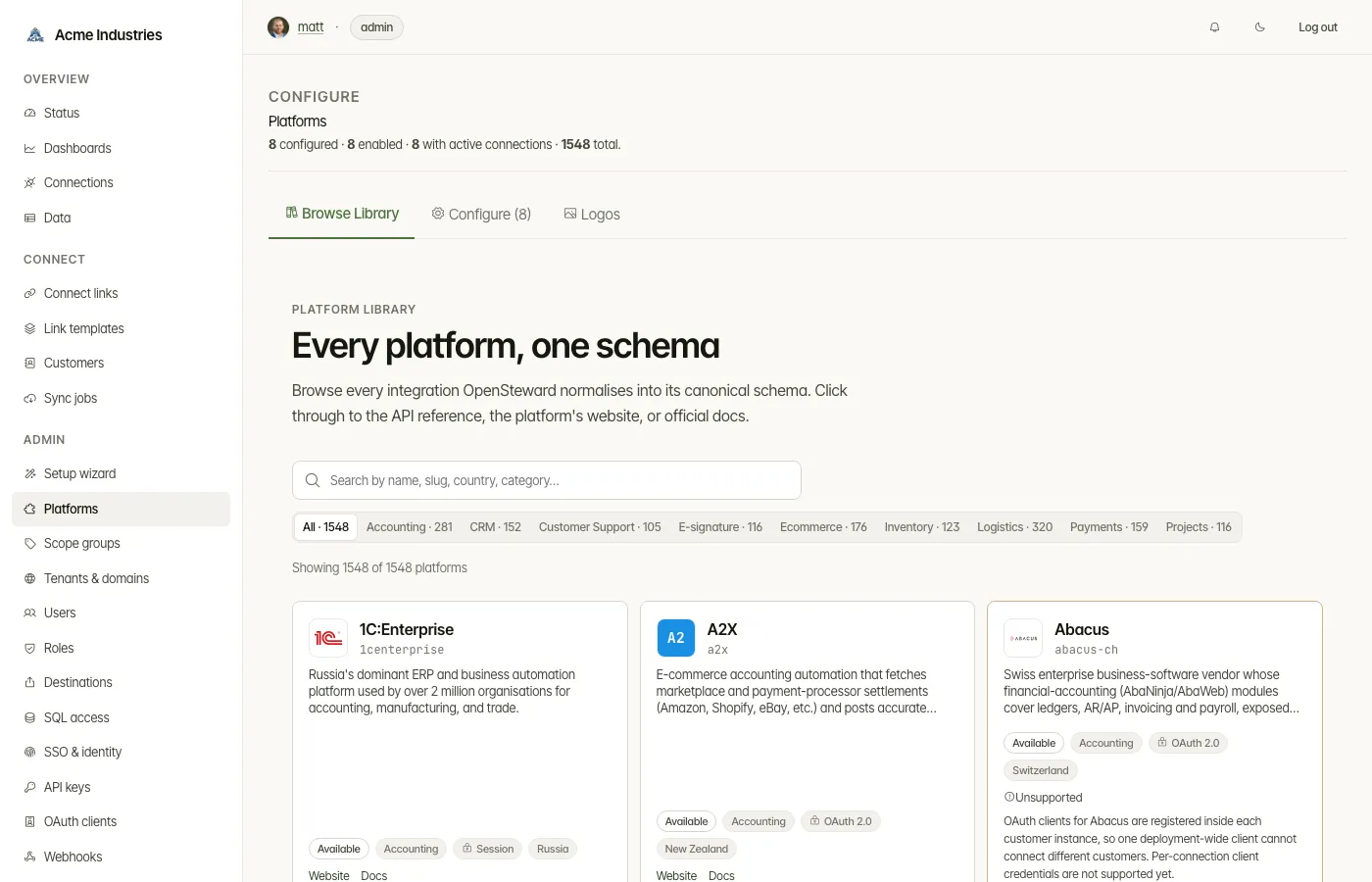
- Read the totals. The header shows how many platforms are configured, enabled, have active connections, and exist in total.
- Use the tabs.
- Browse Library is the full catalog.
- Configure lists the platforms you have set up, with filters.
- Logos chooses how platform logos are shown, and fetches them when you pick local hosting.
On a platform’s page (/platforms/<vertical>/<slug>):
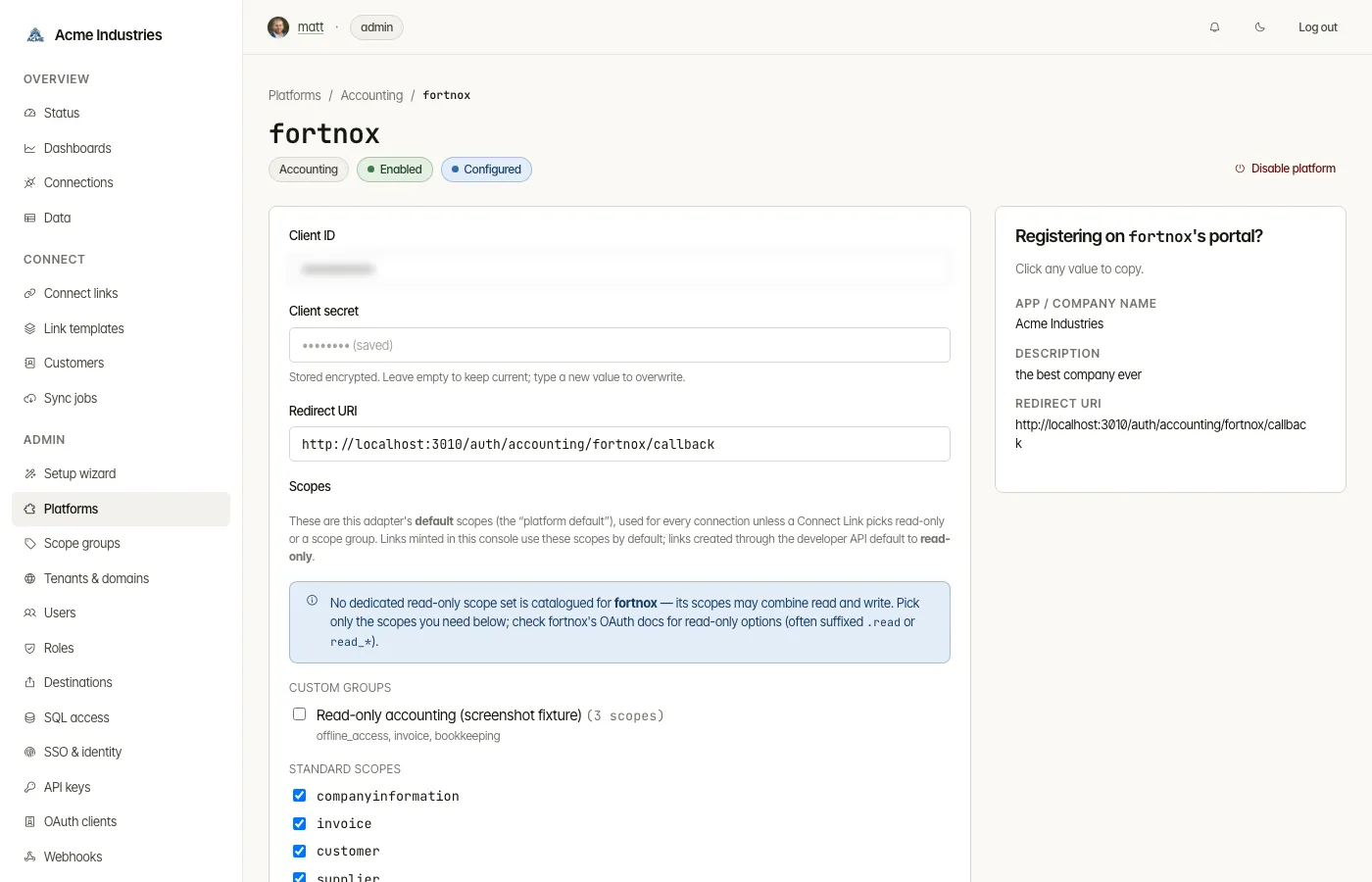
- Read its badges: Enabled or Disabled, Configured, and Unsupported. An unsupported platform can’t be enabled or connected; the page says why and links the tracking issue.
- Enter its credentials.
- Client ID and Client secret. The secret is stored encrypted. Leave it blank to keep the current one.
- Redirect URI. It is filled in from your company base URL; register it with the platform.
- Environment. Tick to use the platform’s sandbox, where it has one.
- Set the scopes.
- These are the platform’s default scopes. Pick them from the platform’s catalogue, or add custom ones.
- Where the platform has a curated read-only set, Use read-only scopes ticks exactly those.
- Some platforms fix their scopes in the OAuth app itself. For those, the page tells you to choose read-only access in the platform’s developer portal.
- Save changes. Saving stores the configuration and enables the platform. Disable platform keeps the configuration but stops new connections.
- See its active connections.
- Use the “Registering on
’s portal?” sidebar. It lists your company details as click-to-copy values: name, description, website, privacy policy, terms of service, support email and redirect URI. They are ready to paste into the platform’s developer portal.
Scope groups
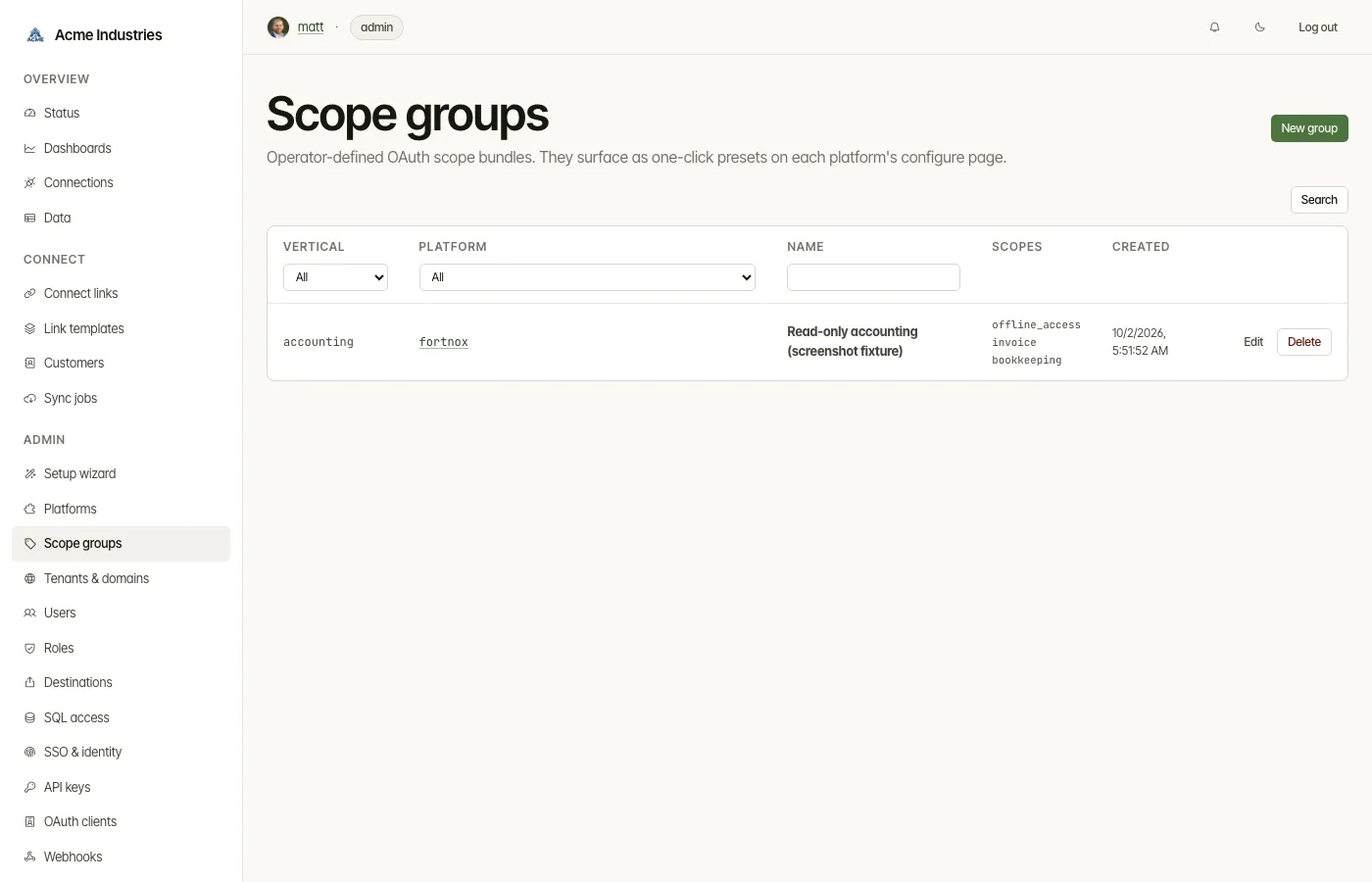
Section titled “Scope groups”A scope group is a named set of scopes for one vertical and adapter.
-
New group. Pick the vertical and adapter, then a preset:
- Read-only (recommended) ticks the platform’s read scopes;
- Read-write ticks all recommended scopes;
- Custom lets you choose.
Name the group and adjust the ticks.
-
Where groups appear. As one-click presets on the platform’s page, and as choices under Scopes on the new Connect Link form, in pinned mode.
-
Coverage. Of the 1,548 catalogued platforms, 207 ship a scope catalogue to pick from, and 121 of those have a curated read-only set.
Related docs
Section titled “Related docs”- Platform catalog: every platform, its auth type and verification status.
- Integration guides: per-platform walkthroughs for registering an OAuth app.
- Platform logos: the three logo modes.
- Architecture: Connect Links, scope policy.
opensteward.dev ·Plans and free license ·Terms ·Privacy ·support@opensteward.dev
© 2026 Falco Consulting AB. Built from open-steward/opensteward@a3961d8. This site sets no cookies, runs no analytics and loads nothing from other sites, except platform logos from Brandfetch on the Platforms page.